



OpenAI has officially launched its Codex application for Windows, bringing its powerful AI code assistant directly to the desktop environment. This move aims to make AI-driven code generation and assistance more accessible and integrated for developers working on the Windows platform. The application provides a centralized hub for managing code-related tasks, leveraging AI to streamline workflows and boost productivity.
Introducing the Codex Windows App
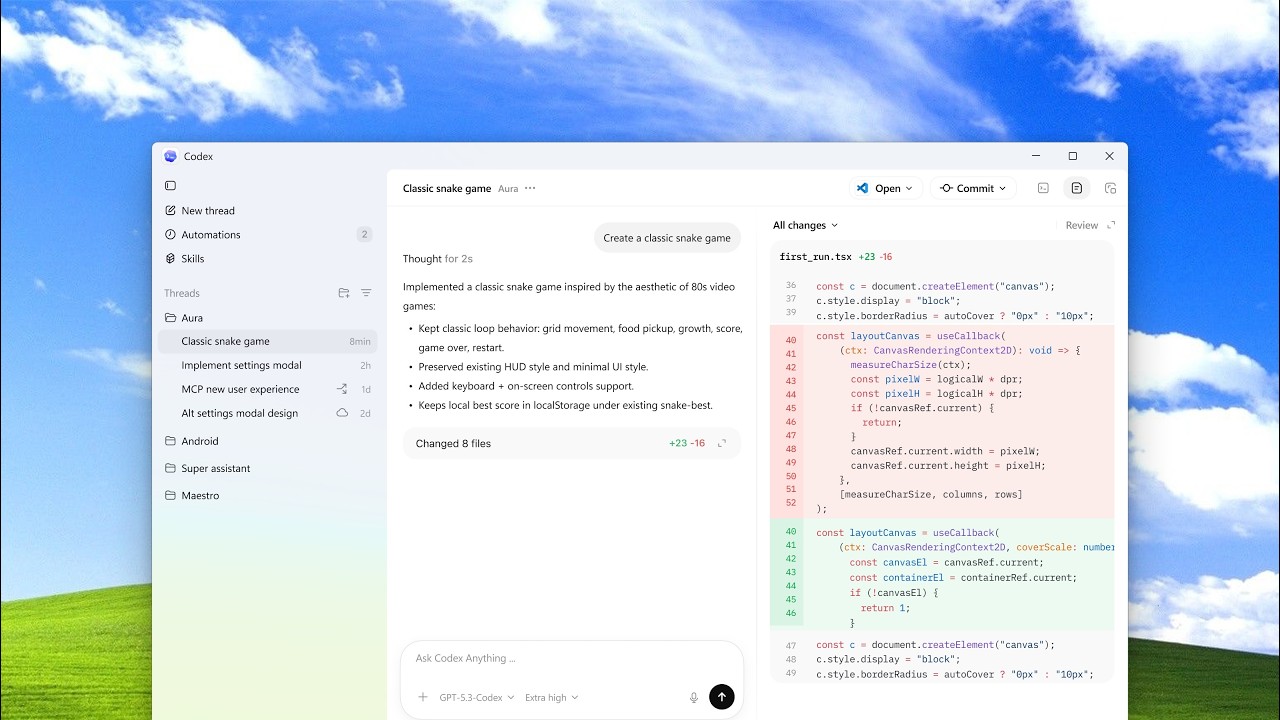
The newly released Codex app for Windows is designed to embed AI capabilities throughout the development lifecycle. It acts as a central point for interacting with Codex, offering features that aim to simplify complex coding tasks, manage projects, and automate repetitive processes. The interface allows users to initiate new threads for coding assistance, manage existing projects, and explore various AI-powered tools and skills.
The full discussion can be found on OpenAI Youtube's YouTube channel.
Key Features and Functionality
The Codex Windows app introduces several key functionalities, including:
- Threads: A system for managing ongoing coding conversations and tasks, allowing developers to track progress and context for different projects.
- Automations: The ability to set up recurring tasks that Codex can perform in the background, such as daily bug scans or summarizing Git activity, freeing up developer time.
- Skills: A curated gallery of specialized AI tools that can be installed and utilized for specific development needs. This includes skills for UI design, app development, code review, and more, with a particular focus on Windows-specific development like WinUI apps.
- Worktrees: Functionality to manage multiple, independent tasks within the same project, allowing for parallel development and better organization.
- QuickEdit: A built-in editor that provides a notepad-like experience for code snippets and basic editing, integrated directly within the Codex environment.
Enhanced Windows Integration
A significant aspect of the Codex Windows app is its deep integration with the operating system. Developers can choose their preferred agent environment, opting for a Windows native experience or running the agent inside the Windows Subsystem for Linux (WSL). Furthermore, users can select their integrated terminal shell, with options including PowerShell, Command Prompt, Git Bash, and WSL, providing flexibility to match existing development preferences.