


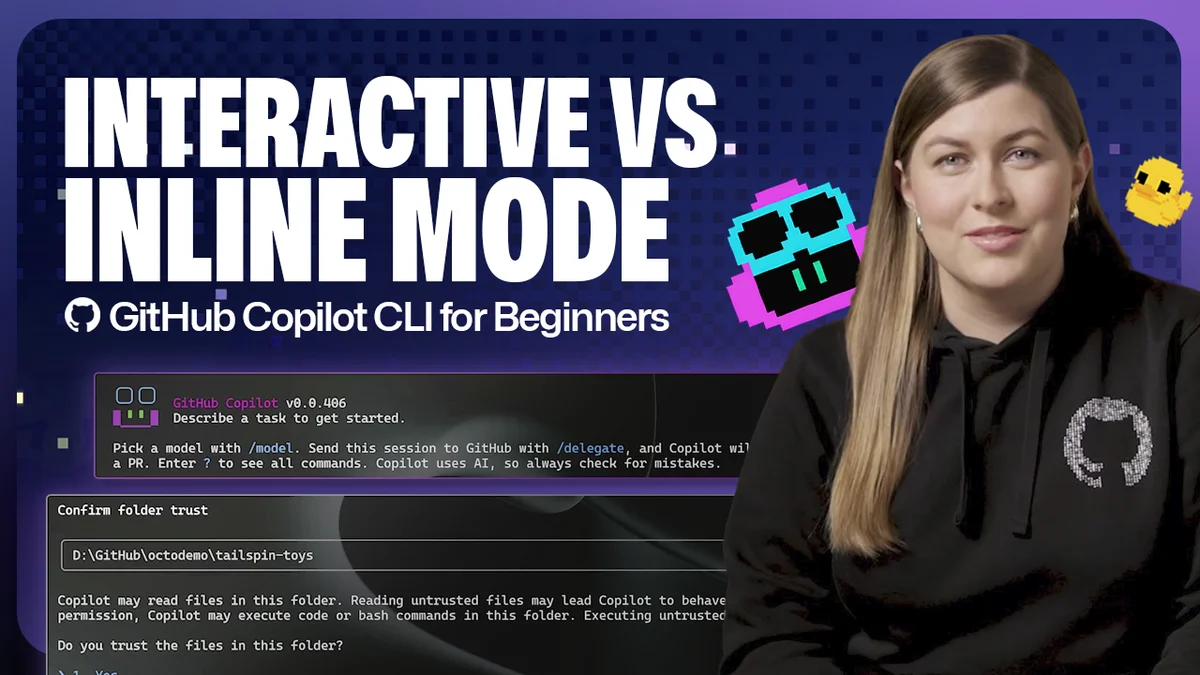
GitHub Copilot is expanding its command-line interface (CLI) capabilities with two distinct modes: interactive and non-interactive. This move aims to streamline developer workflows directly within the terminal. The distinction is crucial for understanding how to best leverage AI assistance for coding tasks.
According to GitHub, the interactive mode is the default. It provides a conversational experience, allowing developers to ask questions, review suggestions, and then follow up with further prompts or requests within the same session. This mode is designed for more exploratory and iterative coding processes.
Interactive Mode: The Conversational Assistant
To enter interactive mode, users simply type copilot in their terminal. The CLI may request permission to read and modify files, necessary for analyzing project context. From there, developers can ask questions like "How do I run this project locally?" or even ask Copilot to execute tasks, such as starting a server, all within the ongoing chat.
Non-Interactive Mode: Speed and Simplicity
For quick, single-purpose commands, non-interactive mode offers a faster alternative. This mode is activated by typing copilot -p followed by a specific prompt. It's built for one-off tasks like summarizing a repository or generating a code snippet without the overhead of a full chat session.
This mode is perfect for integration into automated workflows or for developers who need immediate answers without breaking their current terminal flow. Once the response is delivered, the user is immediately back to their standard command-line environment.